How RawRep works
RawRep is built around one idea: log the set you just did in two taps, and let the phone handle the rest. This page walks through a first workout and everything you'll meet on the way. No account, no internet needed.
1. Your first workout
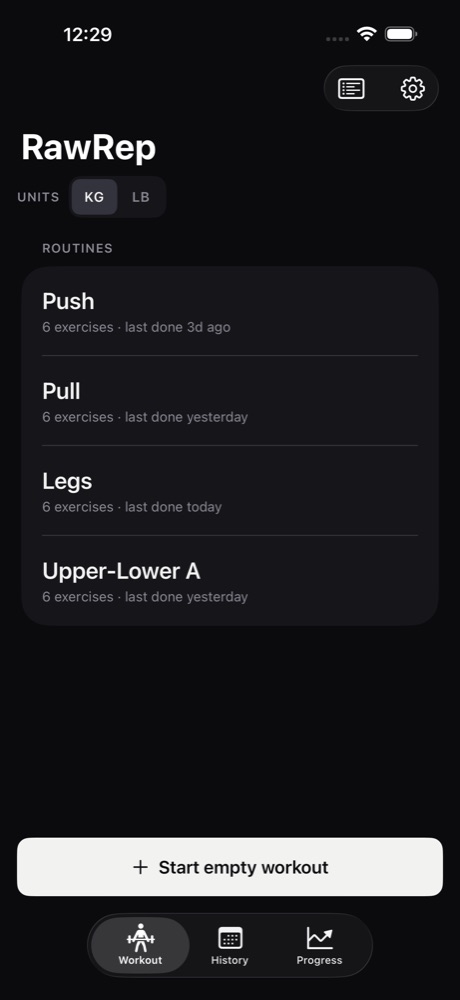
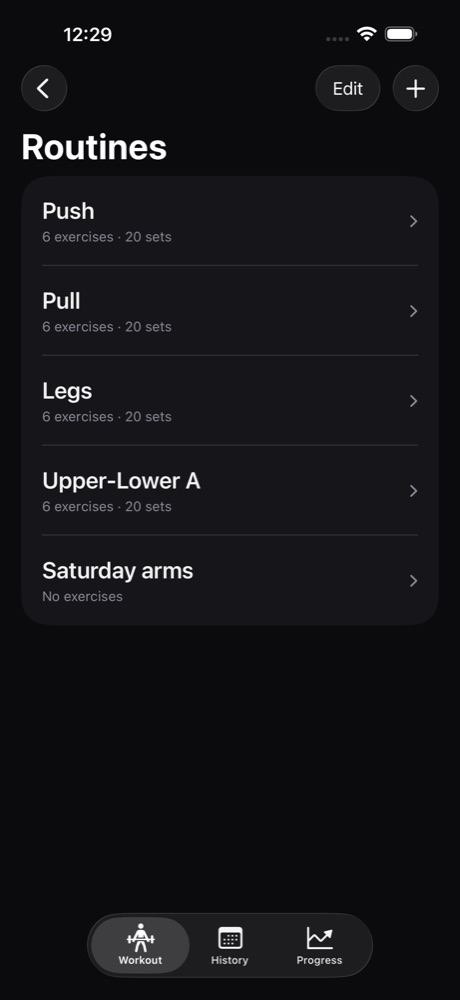
The Workout tab lists your routines — RawRep starts you with Push, Pull, Legs and an Upper-Lower day. Tap a routine to start it. You can edit any routine (or make your own) from the routines button at the top right: add exercises, set how many sets and which rep range you're aiming for.
2. Logging a set — the row
Each exercise shows one row per set, with four columns:
- SET
- The set number and its type. "Working" is a normal set; warm-up sets are marked and don't count toward your bests.
- PREV
- What you did for this set last time — for example
85 × 5. It's a reference, not a field: you can't edit it. - KG / LB and REPS
- The two numbers you're logging. They're pre-filled from last time (or from the routine's target), so if you did the same again you don't touch them. Tap one to change it — a big keypad opens; type, then tap Done.
- ✓
- The set is done. Tapping the tick saves it immediately and starts your rest timer. That's the two taps: adjust if needed, tick.
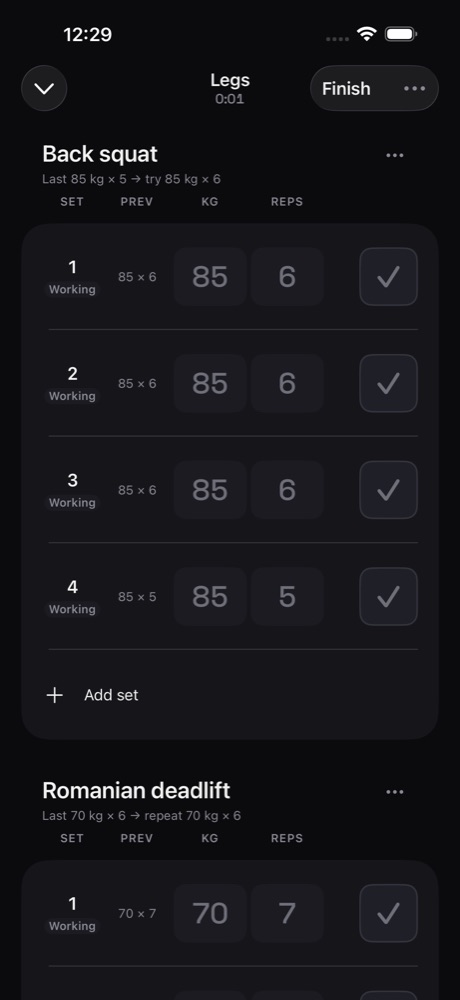
Need another set? "Add set" at the bottom of the exercise. The ⋯ menu on an exercise lets you remove it for today.
3. The suggestion line
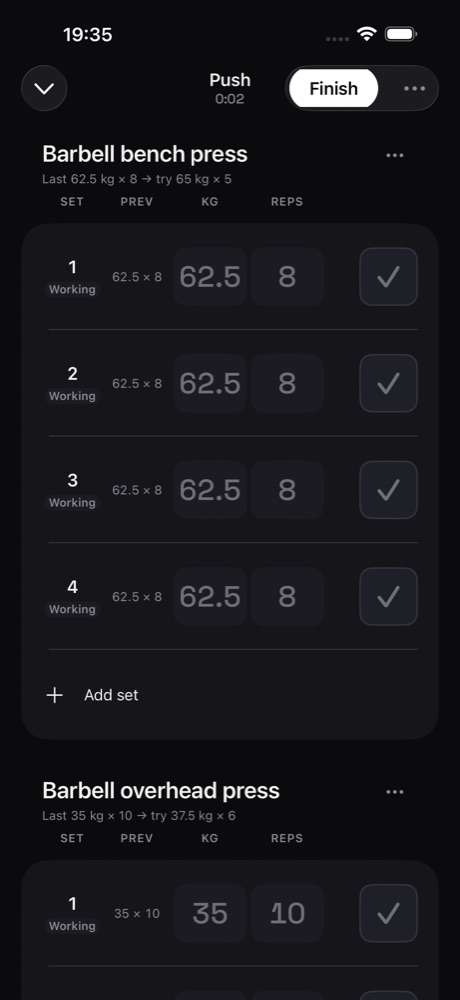
Above each exercise you'll see something like Last 85 kg × 5 → try 85 kg × 6. The left side is your best working set last time. The right side is RawRep's progressive-overload suggestion: add a rep until you reach the top of your rep range, then add weight and drop back down. It's a suggestion — log whatever you actually lift.
4. The rest timer
Every tick starts a rest countdown (90 seconds by default, per exercise; change the defaults in Settings → Rest timer). A bar at the bottom of the workout shows the time with −30, +30 and Skip.
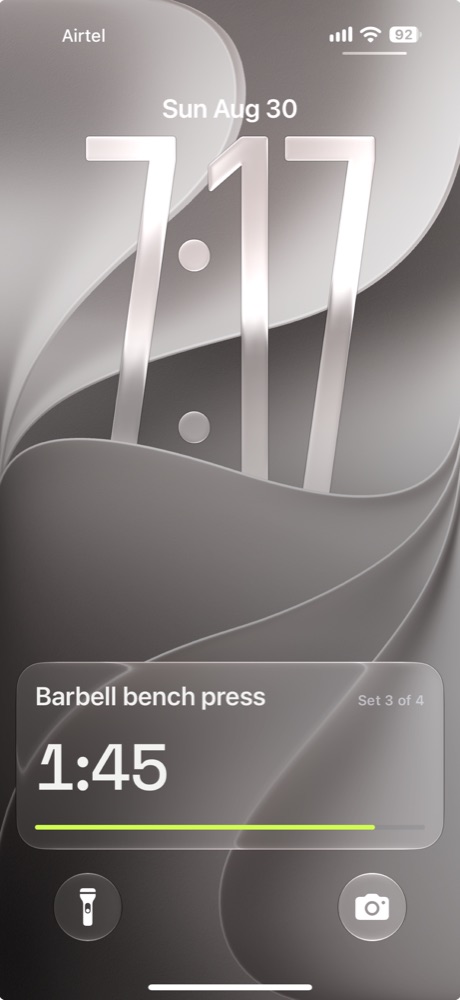
Lock your phone and the countdown carries on as a Live Activity on the Lock Screen and in the Dynamic Island — you don't have to unlock to see it. When it reaches zero it shows GO and you get a notification. If you don't see it, check Settings → RawRep → Live Activities is on, and that Focus modes aren't hiding it (see Support).
5. Finishing
Tap Finish (top right) when you're done. You'll see a summary: sets, volume, duration and any personal records you set — a PR is the best weight, best estimated one-rep max or most reps at a weight for that exercise. Tap Done and the workout goes into History.
Started the wrong routine? The ⋯ menu next to Finish lets you discard the workout.
6. History and Progress
The History tab lists every workout; tap one to see all its sets. Tap an exercise anywhere to see its full history.
The Progress tab draws charts per exercise — estimated one-rep max, top set and weekly volume — plus a sets-per-muscle view for the current week against a 10–20 sets guide. Charts are part of RawRep Pro; everything you log stays free forever, and Pro adds the numbers on top.
7. Faster starts: widget and Shortcuts
Add the RawRep widget to your Home Screen: it shows "Next up" with the routine that follows the one you last did, and tapping it starts that workout straight away.
In the Shortcuts app, RawRep offers Start Workout (with a routine picker) and Start Rest Timer. You can add them to a Focus, an automation, or the Action button. You can also give them your own Siri phrase in Shortcuts.
8. Settings worth knowing
- Units — kg or lb, switch any time; your logs are converted for display, never altered.
- Rest timer — default length, sound and haptics, whether warm-up sets start the timer.
- Health — optionally save finished workouts to Apple Health (Pro).
- Plates & bar — tell RawRep which plates you own and it shows what to load for any weight, from the keypad (Pro).
- Your data — export everything as CSV or JSON, free; or delete it all.
- How RawRep works — re-opens the short in-app walkthrough.
Still stuck?
See Support for FAQs, or email fernhilldiaries@gmail.com.